【新手教程】nginx 部署静态网站

IIS 需要使用 Windows server 的服务器管理器安装,而且强依赖 Windows server,nginx 就不一样了,可以在 Windows、Linux 使用。
首先下载 nginx, https://nginx.org/en/download.html
Windows 直接下载.zip 解压即可
Linux 下载.tar.gz 解压配置环境变量等,也可以编译安装
这里以 Windows 做配置案例,配置文件大部分语法都是通用的,没有什么影响。
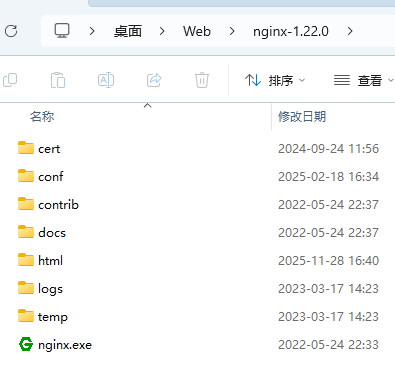
解压后文件结构如图(cert 是我新建的,放证书文件的)
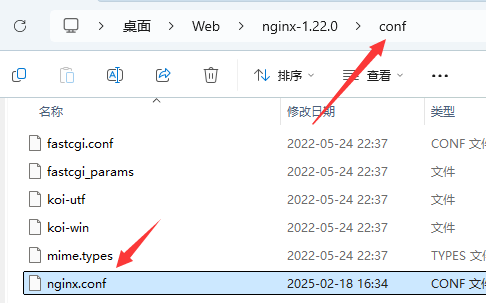
编辑 conf 目录下的 nginx.conf
#user nobody;
worker_processes 1;

#error_log logs/error.log;
#error_log logs/error.log notice;
#error_log logs/error.log info;

#pid logs/nginx.pid;


events {
    worker_connections 1024;
}


http {
    include mime.types;
    default_type application/octet-stream;

    #log_format main '$remote_addr - $remote_user [$time_local] "$request" '
    # '$status $body_bytes_sent "$http_referer" '
    # '"$http_user_agent" "$http_x_forwarded_for"';

    #access_log logs/access.log main;

    sendfile on;
    #tcp_nopush on;

    #keepalive_timeout 0;
    keepalive_timeout 65;

    #gzip on;

    server {
        listen 80;
        server_name localhost;

        #charset koi8-r;

        #access_log logs/host.access.log main;

        location / {
            root html;
            index index.html index.htm;
        }

        #error_page 404 /404.html;

        # redirect server error pages to the static page /50x.html
        #
        error_page 500 502 503 504 /50x.html;
        location = /50x.html {
            root html;
        }

        # proxy the PHP scripts to Apache listening on 127.0.0.1:80
        #
        #location ~ \.php$ {
        # proxy_pass http://127.0.0.1;
        #}

        # pass the PHP scripts to FastCGI server listening on 127.0.0.1:9000
        #
        #location ~ \.php$ {
        # root html;
        # fastcgi_pass 127.0.0.1:9000;
        # fastcgi_index index.php;
        # fastcgi_param SCRIPT_FILENAME /scripts$fastcgi_script_name;
        # include fastcgi_params;
        #}

        # deny access to .htaccess files, if Apache's document root
        # concurs with nginx's one
        #
        #location ~ /\.ht {
        # deny all;
        #}
    }


    # another virtual host using mix of IP-, name-, and port-based configuration
    #
    #server {
    # listen 8000;
    # listen somename:8080;
    # server_name somename alias another.alias;

    # location / {
    # root html;
    # index index.html index.htm;
    # }
    #}


    # HTTPS server
    #
    #server {
    # listen 443 ssl;
    # server_name localhost;

    # ssl_certificate cert.pem;
    # ssl_certificate_key cert.key;

    # ssl_session_cache shared:SSL:1m;
    # ssl_session_timeout 5m;

    # ssl_ciphers HIGH:!aNULL:!MD5;
    # ssl_prefer_server_ciphers on;

    # location / {
    # root html;
    # index index.html index.htm;
    # }
    #}

}
上面是默认内容,看起来很多,很麻烦,实际上很简单,#开头的都是注释,可以全部删掉,也可以备份一份文件后面参考。
worker_processes 1;

events {
    worker_connections 1024;
}


http {
    include mime.types;
    default_type application/octet-stream;

    sendfile on;

    keepalive_timeout 65;

    server {
        listen 80;
        server_name localhost;

        location / {
            root html;
            index index.html index.htm;
        }

        error_page 500 502 503 504 /50x.html;
        location = /50x.html {
            root html;
        }

    }

}
如果我们删除注释,就如上。
本文只需要知道怎么部署静态网站,所以只关注 server 块
listen:监听端口
server_name:你的域名
location:路径配置
默认情况是不需要配置任何文件的,只需要将静态文件放到 html 文件夹下,如果不方便,需要改配置,比如改为 mypage,那么直接将root html改为root mypage
这个路径不带前缀是相对路径,相对于 nginx.exe
接下来是启动,如果直接双击 nginx,会弹出一个窗口。
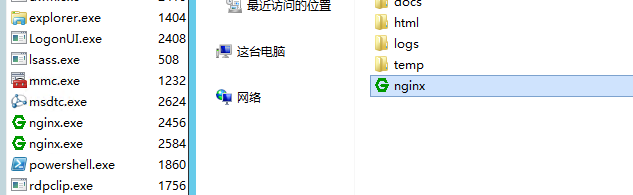
直接双击,有个窗口一闪而过,然后看任务管理器才知道启动没有
一般是启动 cmd,然后运行 nginx.exe 这样有问题也会报错,可以看到详情
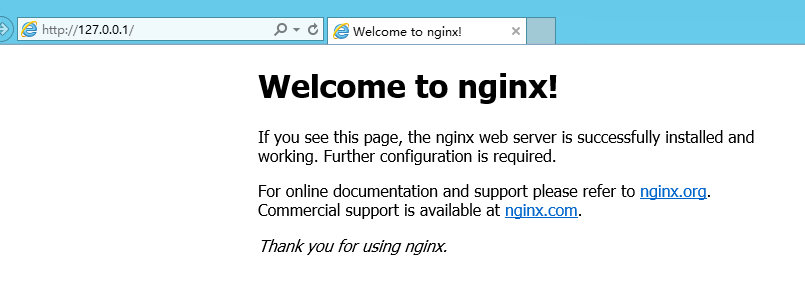
访问正常
相对来说,nginx 部署要比 IIS 简单。

检查配置命令:nginx.exe -t
重新加载配置文件:nginx.exe -s reload(需要启动 nginx 的情况下使用,可以用 start nginx.exe 启动 nginx 防止窗口被占用)
结束进程:nginx.exe -s quit
优秀啊